

.jpg)

Angular Bootstrap Modals / Angular Bootstrap Popup
Angular Modals - Bootstrap 4 & Material Design
Angular Bootstrap modal is a dialog box/popup window which can be used for lightboxes, user notifications, UI enhancements, e-commerce components and many other cases.
It's easily customized. You can manipulate size, position, and content.
If you want to learn about advanced usage of Modals, read our free tutorial Creating Automated web application .
This documentation presents the basic options and examples of modals. If you need more advanced help have a look at additional pages of the documentation listed below:
Basic example
Below is a most basic Modal example with a button triggering Modal via data attribute.
Click the button to trigger Modal.
                <button type="button" mdbBtn color="primary" class="relative waves-light" (click)="basicModal.show()" mdbWavesEffect>Launch demo modal</button>

                <div mdbModal #basicModal="mdbModal" class="modal fade" tabindex="-1" role="dialog" aria-labelledby="myBasicModalLabel" aria-hidden="true">
                  <div class="modal-dialog" role="document">
                    <div class="modal-content">
                      <div class="modal-header">
                        <button type="button" class="close pull-right" aria-label="Close" (click)="basicModal.hide()">
                          <span aria-hidden="true">×</span>
                        </button>
                        <h4 class="modal-title w-100" id="myModalLabel">Modal title</h4>
                      </div>
                      <div class="modal-body">
                        ...
                      </div>
                      <div class="modal-footer">
                        <button type="button" mdbBtn color="secondary" class="waves-light" aria-label="Close" (click)="basicModal.hide()" mdbWavesEffect>Close</button>
                        <button type="button" mdbBtn color="primary" class="relative waves-light" mdbWavesEffect>Save changes</button>
                      </div>
                    </div>
                  </div>
                </div>
Position & Sizes
Click buttons below to launch modals demo
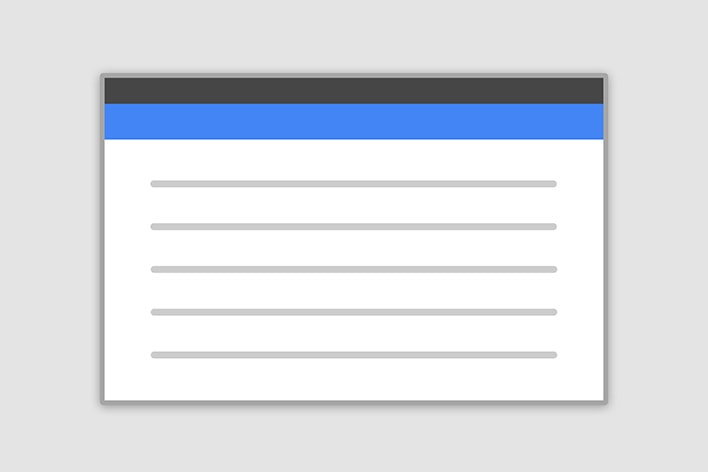
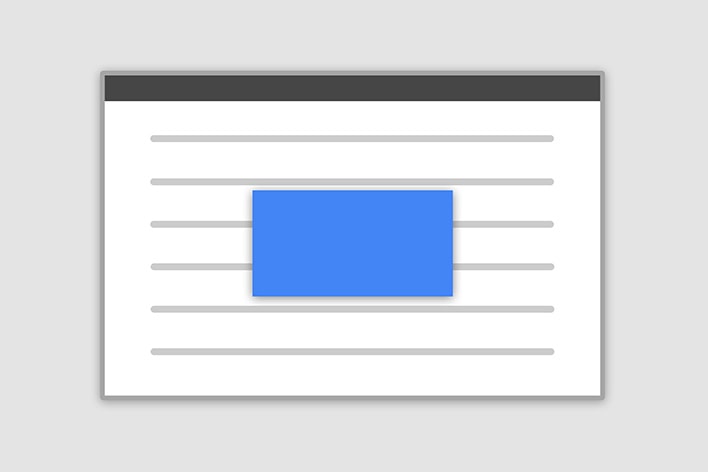
Central Modal
Size
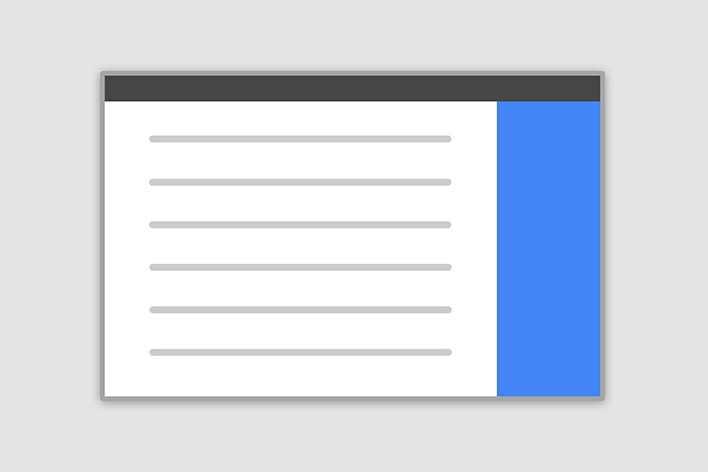
Fluid Modal
Position
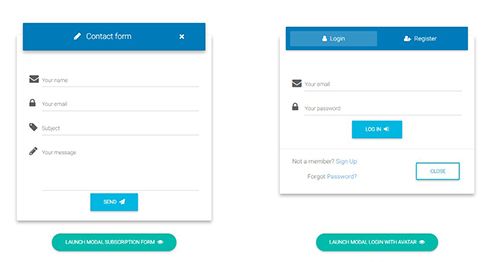
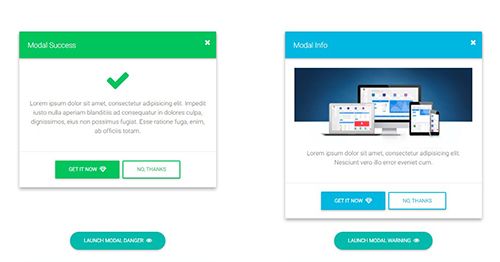
Forms, styles & Predefined templates
Click buttons below to see live previews
Advanced usage
If you want to learn about advanced usage of Modals, read our free tutorial "Creating Automated web application" .
Dynamic modal
You can create modals dynamically from any component using built-in service. To achieve this, follow these steps:
1. Create new component with Angular CLI and add HTML code to the template.
ng generate component modal
    <div class="modal-content">
      <div class="modal-header">
        <button type="button" class="close pull-right" aria-label="Close" (click)="modalRef.hide()">
          <span aria-hidden="true">×</span>
        </button>
        <h4 class="modal-title w-100" id="myModalLabel">Modal title</h4>
      </div>
      <div class="modal-body">
        ...
      </div>
      <div class="modal-footer">
        <button type="button" mdbBtn color="secondary" class="waves-light" aria-label="Close" (click)="modalRef.hide()" mdbWavesEffect>Close</button>
        <button type="button" mdbBtn color="primary" class="relative waves-light" mdbWavesEffect>Save!</button>
      </div>
    </div>
import { Component } from '@angular/core';
import { MDBModalRef } from 'ng-uikit-pro-standard';

@Component({
  selector: 'app-modal',
  templateUrl: './modal.component.html',
})
export class ModalComponent {

  constructor(public modalRef: MDBModalRef) {}

}
2. Add the modal component to entryComponents in your app.module file
import { MDBBootstrapModulesPro } from 'ng-uikit-pro-standard';

import { MDBSpinningPreloader } from 'ng-uikit-pro-standard';
import { ModalComponent } from 'your-path-to-modal-component';

import { NgModule } from '@angular/core';

...

imports: [
    ...
    MDBBootstrapModulesPro.forRoot(),
    ...
],
entryComponents: [ ModalComponent ]
providers: [
...
MDBSpinningPreloader,
...
]
3. Inject MDBModalService to the component from which you want to open the modal and use show method.
<button mdbBtn color="primary" (click)="openModal()">Open modal</button>
import { Component } from '@angular/core';
import { ModalComponent } from 'your-path-to-modal-component';
import { MDBModalRef, MDBModalService } from 'ng-uikit-pro-standard';

@Component({
  selector: 'create-dynamic-modal',
  templateUrl: './create-dynamic-modal.component.html',
})
export class AppComponent {
  modalRef: MDBModalRef;

  constructor(private modalService: MDBModalService) {}

  openModal() {
    this.modalRef = this.modalService.show(ModalComponent)
  }

}
Customize modal
You can customize the dynamica modal by changing its options and passing them to show method of MDBModalService.
If you want to customize dynamic modal using the code for static modals, add classes from element with mdbModal directive to the containerClass parameter and classes from modal-dialog to the class parameter.
Following example show how to create small side modal by adding classes in the options
<button mdbBtn color="primary" (click)="openModal()">Open modal</button>
    import { Component } from '@angular/core';
    import { ModalComponent } from 'your-path-to-modal-component';
    import { MDBModalRef, MDBModalService } from 'ng-uikit-pro-standard';

    @Component({
      selector: 'create-dynamic-modal',
      templateUrl: './create-dynamic-modal.component.html',
    })
    export class AppComponent {
      modalRef: MDBModalRef;

      constructor(private modalService: MDBModalService) {}

      openModal() {
        this.modalRef = this.modalService.show(ModalComponent, {
            backdrop: true,
            keyboard: true,
            focus: true,
            show: false,
            ignoreBackdropClick: false,
            class: 'modal-side modal-top-right',
            containerClass: 'right',
            animated: true
        });
      }
    }
Inject data to the modal
You can inject data to the dynamic modal by passing it to the mdbModalRef.
<button mdbBtn color="primary" (click)="openModal()">Open modal</button>
import { Component } from '@angular/core';
import { ModalComponent } from 'your-path-to-modal-component';
import { MDBModalRef, MDBModalService } from 'ng-uikit-pro-standard';

@Component({
  selector: 'create-dynamic-modal',
  templateUrl: './create-dynamic-modal.component.html',
})
export class AppComponent {
  modalRef: MDBModalRef;

  constructor(private modalService: MDBModalService) {}

  openModal() {
    this.modalRef = this.modalService.show(ModalComponent, {
        backdrop: true,
        keyboard: true,
        focus: true,
        show: false,
        ignoreBackdropClick: false,
        class: ''
        containerClass: ''.
        animated: true
    });
    this.modalRef.content.title = 'Modal title';
    this.modalRef.content.body = 'Modal content';
  }
}
Here is an example showing how to use injected data in the modal component:
    <div class="modal-content">
      <div class="modal-header">
        <button type="button" class="close pull-right" aria-label="Close" (click)="modalRef.hide()">
          <span aria-hidden="true">×</span>
        </button>
        <h4 class="modal-title w-100" id="myModalLabel">{{ title }}</h4>
      </div>
      <div class="modal-body">
        {{ body }}
      </div>
      <div class="modal-footer">
        <button type="button" mdbBtn color="secondary" class="waves-light" aria-label="Close" (click)="modalRef.hide()" mdbWavesEffect>Close</button>
        <button type="button" mdbBtn color="primary" class="relative waves-light" mdbWavesEffect>Save!</button>
      </div>
    </div>
import { Component } from '@angular/core';
import { MDBModalRef } from 'ng-uikit-pro-standard';

@Component({
  selector: 'app-modal',
  templateUrl: './modal.component.html',
})
export class ModalComponent {
  title: string;
  body: string;

  constructor(public modalRef: MDBModalRef) {}

}
Receive data from the modal
You can receive data from the modal to use it in other component:
    <div class="modal-content">
      <div class="modal-header">
        <button type="button" class="close pull-right" aria-label="Close" (click)="modalRef.hide()">
          <span aria-hidden="true">×</span>
        </button>
        <h4 class="modal-title w-100" id="myModalLabel">Are you sure?</h4>
      </div>
      <div class="modal-body">
        ...
      </div>
      <div class="modal-footer">
        <button type="button" mdbBtn color="secondary" class="waves-light" aria-label="Close" (click)="onNoClick()" mdbWavesEffect>Close</button>
        <button type="button" mdbBtn color="primary" class="relative waves-light" (click)="onYesClick()" mdbWavesEffect>Save!</button>
      </div>
    </div>
import { Component } from '@angular/core';
import { MDBModalRef } from 'ng-uikit-pro-standard';
import { Subject } from 'rxjs';

@Component({
  selector: 'app-modal',
  templateUrl: './modal.component.html',
})
export class ModalComponent {
  action: Subject<any> = new Subject();

  constructor(public modalRef: MDBModalRef) {}

  onYesClick() {
      this.action.next('yes');
  }

  onNoClick() {
      this.action.next('No');
  }

}
Here is an example showing how to use data received from modal in other component
<button mdbBtn color="primary" (click)="openModal()">Open modal</button>
import { Component } from '@angular/core';
import { ModalComponent } from 'your-path-to-modal-component';
import { MDBModalRef, MDBModalService } from 'ng-uikit-pro-standard';

@Component({
  selector: 'create-dynamic-modal',
  templateUrl: './create-dynamic-modal.component.html',
})
export class AppComponent {
  modalRef: MDBModalRef;

  constructor(private modalService: MDBModalService) {}

  openModal() {
    this.modalRef = this.modalService.show(ModalComponent, {
        backdrop: true,
        keyboard: true,
        focus: true,
        show: false,
        ignoreBackdropClick: false,
        class: ''
        containerClass: ''.
        animated: true
    });

    this.modalRef.content.action.subscribe( (result: any) => { console.log(result); });
  }
}
Position and size
To change the position or size of the modal add one of the following classes to the
.modal-dialog div.
Central modal
Note: Medium size is a default value, so there isn't a dedicated class for it.
.modal-sm Small Modal
.modal-lg Large Modal
.modal-fluid Full Width Modal
                <button type="button" mdbBtn color="primary" class="relative waves-light" (click)="basicModal.show()" mdbWavesEffect>Launch demo modal</button>

                <div mdbModal #basicModal="mdbModal" class="modal fade" tabindex="-1" role="dialog" aria-labelledby="myBasicModalLabel" aria-hidden="true">
                  <div class="modal-dialog modal-sm" role="document">
                    <div class="modal-content">
                      <div class="modal-header">
                        <button type="button" class="close pull-right" aria-label="Close" (click)="basicModal.hide()">
                          <span aria-hidden="true">×</span>
                        </button>
                        <h4 class="modal-title w-100" id="myModalLabel">Modal title</h4>
                      </div>
                      <div class="modal-body">
                        ...
                      </div>
                      <div class="modal-footer">
                        <button type="button" mdbBtn color="secondary" class="waves-light" aria-label="Close" (click)="basicModal.hide()" mdbWavesEffect>Close</button>
                        <button type="button" mdbBtn color="primary" class="relative waves-light" mdbWavesEffect>Save!</button>
                      </div>
                    </div>
                  </div>
                </div>
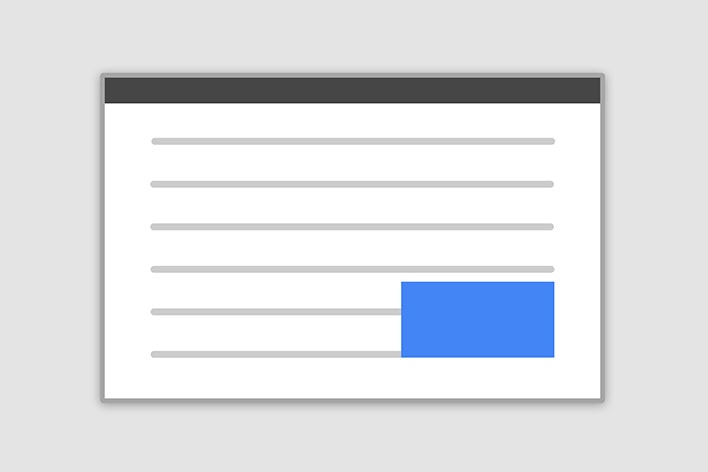
Side modal
Note: To make it works properly, apart from adding a class for a position, you also need to add special
class
.side-modal to
.modal-dialog div.
Note 2: If you want to change a direction of modal animation, add class
.top,
.right,
bottom or
.left to the
.modal div.
.modal-side +
.modal-top-right Top Right
.modal-side +
.modal-top-left Top Left
.modal-side +
.modal-bottom-right Bottom Right
.modal-side +
.modal-bottom-right Bottom Left
                <button type="button" mdbBtn color="primary" class="relative waves-light" (click)="basicModal.show()" mdbWavesEffect>Launch demo modal</button>

                <div mdbModal #basicModal="mdbModal" class="modal fade right" tabindex="-1" role="dialog" aria-labelledby="myBasicModalLabel"
                  aria-hidden="true">
                  <div class="modal-dialog modal-side modal-top-right " role="document">
                    <div class="modal-content">
                      <div class="modal-header">
                        <button type="button" class="close pull-right" aria-label="Close" (click)="basicModal.hide()">
                          <span aria-hidden="true">×</span>
                        </button>
                        <h4 class="modal-title w-100" id="myModalLabel">Modal title</h4>
                      </div>
                      <div class="modal-body">
                        ...
                      </div>
                      <div class="modal-footer">
                        <button type="button" mdbBtn color="secondary" class="waves-light" aria-label="Close" (click)="basicModal.hide()" mdbWavesEffect>Close</button>
                        <button type="button" mdbBtn color="primary" class="relative waves-light" mdbWavesEffect>Save!</button>
                      </div>
                    </div>
                  </div>
                </div>
Fluid modal
Note: As in the previous example - to make it works properly, apart from adding a class for a position,
you also need to add special class
.modal-full-height to
.modal-dialog div.
Note 2: If you want to change a direction of modal animation, add class
.top,
.right,
bottom or
.left to the
.modal div.
.modal-full-height +
.modal-right Right
.modal-full-height +
.modal-left Left
.modal-full-height +
.modal-bottom Bottom
.modal-full-height +
.modal-top Top
                <button type="button" mdbBtn color="primary" class="relative waves-light" (click)="basicModal.show()" mdbWavesEffect>Launch demo modal</button>

                <div mdbModal #basicModal="mdbModal" class="modal fade right" tabindex="-1" role="dialog" aria-labelledby="myBasicModalLabel"
                  aria-hidden="true">
                  <div class="modal-dialog modal-full-height modal-right" role="document">
                    <div class="modal-content">
                      <div class="modal-header">
                        <button type="button" class="close pull-right" aria-label="Close" (click)="basicModal.hide()">
                          <span aria-hidden="true">×</span>
                        </button>
                        <h4 class="modal-title w-100" id="myModalLabel">Modal title</h4>
                      </div>
                      <div class="modal-body">
                        ...
                      </div>
                      <div class="modal-footer">
                        <button type="button" mdbBtn color="secondary" class="waves-light" aria-label="Close" (click)="basicModal.hide()" mdbWavesEffect>Close</button>
                        <button type="button" mdbBtn color="primary" class="relative waves-light" mdbWavesEffect>Save!</button>
                      </div>
                    </div>
                  </div>
                </div>
Frame modal
Note: As in the previous examples - to make it works properly, apart from adding a class for a position,
you also need to add special class
.modal-frame to
.modal-dialog div.
Note 2: If you want to change a direction of modal animation, add class
.top,
.right,
bottom or
.left to the
.modal div.
.modal-frame +
.modal-bottom Bottom
.modal-frame +
.modal-top Top
                <button type="button" mdbBtn color="primary" class="relative waves-light" (click)="basicModal.show()" mdbWavesEffect>Launch demo modal</button>

                <div mdbModal #basicModal="mdbModal" class="modal fade bottom" tabindex="-1" role="dialog" aria-labelledby="myBasicModalLabel"
                  aria-hidden="true">
                  <div class="modal-dialog modal-frame modal-bottom" role="document">
                    <div class="modal-content">
                      <div class="modal-header">
                        <button type="button" class="close pull-right" aria-label="Close" (click)="basicModal.hide()">
                          <span aria-hidden="true">×</span>
                        </button>
                        <h4 class="modal-title w-100" id="myModalLabel">Modal title</h4>
                      </div>
                      <div class="modal-body">
                        ...
                      </div>
                      <div class="modal-footer">
                        <button type="button" mdbBtn color="secondary" class="waves-light" aria-label="Close" (click)="basicModal.hide()" mdbWavesEffect>Close</button>
                        <button type="button" mdbBtn color="primary" class="relative waves-light" mdbWavesEffect>Save!</button>
                      </div>
                    </div>
                  </div>
                </div>
Scrolling long content
When modal become too long for the user’s viewport or device, it should scroll of the page itself.
To do this, add style="overflow-y: auto" to div with mdbModal directive.
Vertically centered
Add
.modal-dialog-centered to
.modal-dialog to vertically center the modal.
                    <button type="button" mdbBtn color="primary" class="relative waves-light" (click)="basicModal.show()" mdbWavesEffect>Launch demo modal</button>

                    <div mdbModal #basicModal="mdbModal" class="modal fade" tabindex="-1" role="dialog" aria-labelledby="myBasicModalLabel" aria-hidden="true">
                      <div class="modal-dialog modal-dialog-centered" role="document">
                        <div class="modal-content">
                          <div class="modal-header">
                            <button type="button" class="close pull-right" aria-label="Close" (click)="basicModal.hide()">
                              <span aria-hidden="true">×</span>
                            </button>
                            <h4 class="modal-title w-100" id="myModalLabel">Modal title</h4>
                          </div>
                          <div class="modal-body">
                            ...
                          </div>
                          <div class="modal-footer">
                            <button type="button" mdbBtn color="secondary" class="waves-light" aria-label="Close" (click)="basicModal.hide()" mdbWavesEffect>Close</button>
                            <button type="button" mdbBtn color="primary" class="relative waves-light" mdbWavesEffect>Save!</button>
                          </div>
                        </div>
                      </div>
                    </div>
Tooltips and popovers
Tooltips and popovers can be placed within modals as needed.
                    <button type="button" mdbBtn color="primary" class="relative waves-light" (click)="basicModal.show()" mdbWavesEffect>Launch demo modal</button>

                    <div mdbModal #basicModal="mdbModal" class="modal fade" tabindex="-1" role="dialog" aria-labelledby="myBasicModalLabel" aria-hidden="true">
                      <div class="modal-dialog modal-dialog-centered" role="document">
                        <div class="modal-content">
                          <div class="modal-header">
                            <button type="button" class="close pull-right" aria-label="Close" (click)="basicModal.hide()">
                              <span aria-hidden="true">×</span>
                            </button>
                            <h4 class="modal-title w-100" id="myModalLabel">Modal title</h4>
                          </div>
                          <div class="modal-body">
                            <h5>Popover in a modal</h5>
                            <p>This
                              <a type="button" mdbBtn color="default" class="waves-light" mdbPopover="And here some amazing content. It's very engaging. Right?"
                                placement="top" mdbPopoverHeader="Popover on top" mdbWavesEffect>
                                Popover on top
                              </a> triggers a popover on click.</p>
                            <hr>
                            <h5>Tooltips in a modal</h5>
                            <p>
                              <a mdbTooltip="Tooltip on top" placement="top">
                                This link have a tooltip on it
                              </a>
                          </div>
                          <div class="modal-footer">
                            <button type="button" mdbBtn color="secondary" class="waves-light" aria-label="Close" (click)="basicModal.hide()" mdbWavesEffect>Close</button>
                            <button type="button" mdbBtn color="primary" class="relative waves-light" mdbWavesEffect>Save!</button>
                          </div>
                        </div>
                      </div>
                    </div>
Using the grid
Utilize the Bootstrap grid system within a modal by nesting
.container-fluid within the
.modal-body. Then, use the normal grid system classes as you would anywhere else.
                    <button type="button" mdbBtn color="primary" class="relative waves-light" (click)="basicModal.show()" mdbWavesEffect>Launch demo modal</button>

                    <div mdbModal #basicModal="mdbModal" class="modal fade" tabindex="-1" role="dialog" aria-labelledby="myBasicModalLabel" aria-hidden="true">
                      <div class="modal-dialog modal-dialog-centered" role="document">
                        <div class="modal-content">
                          <div class="modal-header">
                            <button type="button" class="close pull-right" aria-label="Close" (click)="basicModal.hide()">
                              <span aria-hidden="true">×</span>
                            </button>
                            <h4 class="modal-title w-100" id="myModalLabel">Modal title</h4>
                          </div>
                          <div class="modal-body">
                            <div class="container-fluid">
                              <div class="row">
                                <div class="col-md-4 col-example">.col-md-4</div>
                                <div class="col-md-4 ml-auto col-example">.col-md-4 .ml-auto</div>
                              </div>
                              <br>
                              <div class="row">
                                <div class="col-md-3 ml-auto col-example">.col-md-3 .ml-auto</div>
                                <div class="col-md-2 ml-auto col-example">.col-md-2 .ml-auto</div>
                              </div>
                              <div class="row">
                                <div class="col-md-6 ml-5 col-example">.col-md-6 .ml-5</div>
                              </div>
                              <br>
                              <div class="row">
                                <div class="col-sm-9 col-example">
                                  Level 1: .col-sm-9
                                  <div class="row">
                                    <div class="col-8 col-sm-6 col-example">
                                      Level 2: .col-8 .col-sm-6
                                    </div>
                                    <div class="col-4 col-sm-6 col-example">
                                      Level 2: .col-4 .col-sm-6
                                    </div>
                                  </div>
                                </div>
                              </div>
                            </div>
                          </div>
                          <div class="modal-footer">
                            <button type="button" mdbBtn color="secondary" class="waves-light" aria-label="Close" (click)="basicModal.hide()" mdbWavesEffect>Close</button>
                            <button type="button" mdbBtn color="primary" class="relative waves-light" mdbWavesEffect>Save!</button>
                          </div>
                        </div>
                      </div>
                    </div>
Varying modal content
Have a bunch of buttons that all trigger the same modal with slightly different contents?
            <div class="bd-example">
    <button type="button" class="btn btn-primary waves-light" data-toggle="modal" data-target="#exampleModal" data-whatever="@mdo" (click)="show( '@mdo' )" mdbWavesEffect>Open modal for @mdo</button>
    <button type="button" class="btn btn-primary waves-light" data-toggle="modal" data-target="#exampleModal" data-whatever="@fat" (click)="show( '@fat' )" mdbWavesEffect>Open modal for @fat</button>
    <button type="button" class="btn btn-primary waves-light" data-toggle="modal" data-target="#exampleModal" data-whatever="@getbootstrap" (click)="show( '@getbootstrap' )" mdbWavesEffect>Open modal for @getbootstrap</button>

    <div mdbModal #content="mdbModal" class="modal fade" id="exampleModal" tabindex="-1" role="dialog" aria-labelledby="exampleModalLabel" aria-hidden="true">
        <div class="modal-dialog" role="document">
            <div class="modal-content">
                <div class="modal-header">
                    <h4 class="modal-title" id="exampleModalLabel">New message to {{ name }}</h4>
                    <button type="button" class="close" data-dismiss="modal" aria-label="Close" (click)="content.hide()">
                        <span aria-hidden="true">×</span>
                    </button>
                </div>
                <div class="modal-body">
                    <form>
                        <div class="md-form">
                            <input type="text" class="form-control" id="recipient-name" [value]="name">
                        </div>
                        <div class="md-form">
                            <textarea type="text" id="message-text" class="md-textarea"></textarea>
                        </div>
                    </form>
                </div>
                <div class="modal-footer">
                    <button type="button" class="btn btn-secondary waves-light" data-dismiss="modal" (click)="content.hide()" mdbWavesEffect>Close</button>
                    <button type="button" class="btn btn-primary waves-light" mdbWavesEffect>Send message</button>
                </div>
            </div>
        </div>
    </div>
</div>
                    import { Component, ViewChild } from '@angular/core';

                    @Component({
                      selector: 'modal-content-example',
                      templateUrl: 'modal-content.html',
                    })

                    export class ModalContentComponent {
                        @ViewChild('content') public contentModal;
                        public name: string;

                        show(value:string){
                            this.name = value;
                            this.contentModal.show();
                        }
                    }
Remove animation
For modals that simply appear rather than fade into view, remove the
.fade class from your modal markup.
                    <div mdbModal #basicModal="mdbModal" class="modal" tabindex="-1" role="dialog" aria-labelledby="myBasicModalLabel" aria-hidden="true">
                  ...
              </div>
Accessibility
Be sure to add
role="dialog" and
aria-labelledby="...", referencing the modal title, to
.modal, and
role="document" to the
.modal-dialog itself. Additionally, you may give a description of your modal dialog with aria-describedby on
.modal.
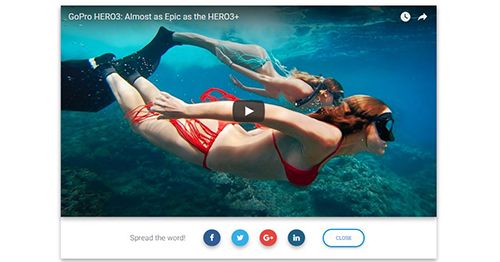
Embedding YouTube & Vimeo videos
Have a look at this examples to see how it works:
Remove backdrop
To remove
backdrop add
[config]="{backdrop: false, ignoreBackdropClick: true}" attribute to the modal markup
                    <div mdbModal #basicModal="mdbModal" class="modal fade" tabindex="-1" role="dialog" aria-labelledby="myBasicModalLabel" aria-hidden="true"
                    [config]="{backdrop: false, ignoreBackdropClick: true}">
                  ...
                </div>
Using show and hide functions in typescript file
Use Angular @ViewChild decorator to get access to modal functions in your typescript file. In following example you can click on button to open modal and it will hide automatically after 3 seconds.
                    <button class="btn btn-primary waves-light" (click)="showAndHideModal()">Open modal</button>

                    <div mdbModal #demoBasic="mdbModal" class="modal fade" id="basicExample" tabindex="-1" role="dialog" aria-labelledby="myModalLabel" aria-hidden="true">
                        <div class="modal-dialog modal-sm" role="document">
                            <div class="modal-content">
                                <div class="modal-header">
                                    <h4 class="modal-title w-100" id="myModalLabel">Modal title</h4>
                                    <button type="button" class="close" data-dismiss="modal" aria-label="Close" (click)="demoBasic.hide()">
                                        <span aria-hidden="true">×</span>
                                    </button>
                                </div>
                                <div class="modal-body">
                                    ...
                                </div>
                                <div class="modal-footer">
                                    <button type="button" class="btn btn-secondary btn-sm waves-light" data-dismiss="modal" (click)="demoBasic.hide()" mdbWavesEffect>Close</button>
                                    <button type="button" class="btn btn-primary btn-sm waves-light" mdbWavesEffect>Save changes</button>
                                </div>
                            </div>
                        </div>
                    </div>
                    import { Component, ViewChild } from '@angular/core';
                    import { ModalDirective } from 'your path to modal directive';

                    @Component({
                      selector: 'show-and-hide-modal-example',
                      templateUrl: './show-and-hide-modal.component.html',
                    })
                    export class ShowAndHideModalComponent {
                    @ViewChild('demoBasic') demoBasic: ModalDirective;

                      showAndHideModal() {
                        this.demoBasic.show();

                        setTimeout(() => {
                          this.demoBasic.hide();
                        }, 3000);
                      }
                    }
Angular Modals - API
In this section you will find informations about required modules and available inputs, outputs, methods and events of modals component.
Modules used
In order to speed up your application, you can choose to import only the modules you actually need, instead of importing the entire MDB Angular library. Remember that importing the entire library, and immediately afterwards a specific module, is bad practice, and can cause application errors.
// MDB Angular Pro
import { ModalModule, WavesModule, InputsModule, ButtonsModule } from 'ng-uikit-pro-standard'
// MDB Angular Free
import { ModalModule, WavesModule, InputsModule, ButtonsModule } from 'angular-bootstrap-md'Directive
mdbModal
Selector:
mdbModal
Type:
ModalDirective
Inputs
Inputs
| Name | Type | Default | Description | Example |
|---|---|---|---|---|
[config]
|
ModalOptions | { } | allows to set modal configuration via element property |
[config]="{backdrop: false}"
|
ModalOptions
| Name | Type | Default | Description | Example |
|---|---|---|---|---|
[config]
|
ModalOptions | { } | allows to set modal configuration via element property |
[config]="{backdrop: false}"
|
backdrop
|
boolean | "static" | true | Includes a modal-backdrop element. Alternatively, specify static for a backdrop which doesn't close the modal on click. |
[config]="{backdrop: false}"
|
ignoreBackdropClick
|
boolean | false | Ignore the backdrop click. |
[config]="{ignoreBackdropClick: true}"
|
keyboard
|
boolean | true | Closes the modal when the escape key is pressed. |
[config]="{keyboard: false}"
|
show
|
boolean | false | Shows the modal when initialized. |
[config]="{show: true}"
|
class
|
string | ' ' | Css class for opened modal. |
[config]="{class: 'custom-class'}"
|
Outputs
| Name | Type | Description | Example |
|---|---|---|---|
closed
|
EventEmitter<ModalDirective> | Event is fired when the modal has finished being hidden from the user. |
(closed)="onClosed($event)"
|
close
|
EventEmitter<ModalDirective> | Event is fired instantly when the hide instance method has been called. |
(close)="onClose($event)"
|
open
|
EventEmitter<ModalDirective> | Event fires instantly when the show instance method is called. |
(open)="onOpen($event)"
|
opened
|
EventEmitter<ModalDirective> | Event is fired when the modal has been made visible to the user. |
(opened)="onOpened($event)"
|
Methods
In below table you can find every method which is available in ModalDirective.
| Name | Description |
|---|---|
(event)="name.show()"
|
Allows to manually open modal. |
(event)="name.hide()"
|
Allows to manually close modal. |
(event)="name.toggle(value: boolean)()"
|
Allows to manually toggle modal visibility. |
(event)="name.focusOtherModal()"
|
Events tricks. |